🔑 What is NIDHI APCFSS?
The NIDHI APCFSS (Andhra Pradesh Centre for Financial Systems and Services) portal is the official platform for managing salary bills of government employees in Andhra Pradesh. It facilitates the preparation, verification, and submission of salary bills through a streamlined digital process. For preparation of Salary bills, DA Bill, EL, Medical bill DDO has to know following steps to submit online. These steps will be helpful while preparing the Salary bills online through the website https://nidhi.apcfss.in.
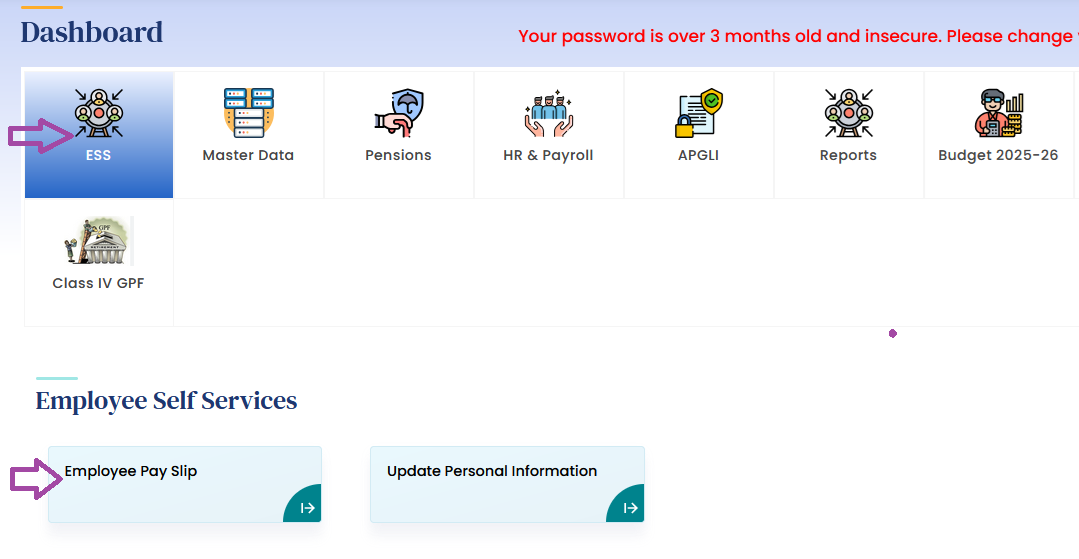
📝 Step-by-Step Guide to Salary Bill Preparation
1. Login to NIDHI Portal
-
Access the Portal:
Visit the official NIDHI login page: https://nidhi.apcfss.in/login -
Enter Credentials:
Input your User ID and Password, then click on Continue and Login.
Note:
Ensure your credentials are correct to avoid login issues.
2. Navigate to Employee Loans Section
-
Access Loans Tab:
After logging in, click on the Loans section. -
Select DDO Code:
Choose your DDO Code and click Submit. -
Update Loan Details:
For each employee, enter the number of installments received, the amount, loan status, and click Update. -
Add New Loan:
To add a new loan, click on the Add Loan tab, fill in the required details, and click Submit. -
Proceed to Digital Signature:
After updating or adding loans, click on Proceed to Digital Signature.
3. Annual Increment Updates
-
Access Increment Section:
Click on the Annual Increment tile. -
Enter Details:
Input your DDO Code, Increment Date, and click Continue. -
Proceed:
After entering the details, click Submit to save the information.
4. Regular Payroll Preparation
-
Access Payroll Section:
Click on the Regular Pay Bill tile. -
Select DDO & HOA:
Choose your DDO and HOA, then click Get Data. -
Verify Employee Data:
Ensure all employee data is accurate. If corrections are needed, click on the Action button next to the employee’s data. -
Save & Proceed:
After verification, click Save & Next. -
Review Summary:
The system will display a summary with sections like Employee Attendance, Cadre Strength, Employee Pay Summary, DDO Pay Summary, Payroll Rules, and Variation Report. -
Download Forms:
Download Form 47, Pay Slip, Schedule, and Variation Report. -
Submit for Digital Signature:
Change the status in the Payroll Rules section to Submit and click Submit to proceed to the Digital Signature portal.
5. Submission to Treasury via HERB
-
Login to HERB Portal:
Visit https://herb.apcfss.in
-
Navigate to Pay Bill Submission:
Go to HR & PAYROLL → Pay Bill Submission → Regular Pay Bill. -
Select DDO & HOA:
Choose your DDO and HOA, then click Get Data. -
Verify Data:
Ensure all employee data is correct. If corrections are needed, click on the Action button next to the employee’s data. -
Save & Proceed:
After verification, click Save & Next. -
Review Summary:
The system will display a summary with sections like Cadre Strength, Pay Particulars, and Payroll Rules. -
Download Forms:
Download Form 47, Form 47 Summary, Schedules, Slo Fly Leaf, and Variation Statement. -
Submit for Digital Signature:
Click on E-sign or Biometric Authentication to forward the bill to the Expenditure → Bill Life Cycle section. -
Upload Documents:
Upload scanned copies of Form 47, Form 47 Summary, Schedules, and Variation Statement. Ensure the total file size is less than 1MB. -
Biometric Authentication:
Attach your biometric device, select your device from the list, and proceed with the thumbprint scan to authenticate. -
Final Submission:
After successful authentication, click Save and Forward to submit the salary bill to the treasury.